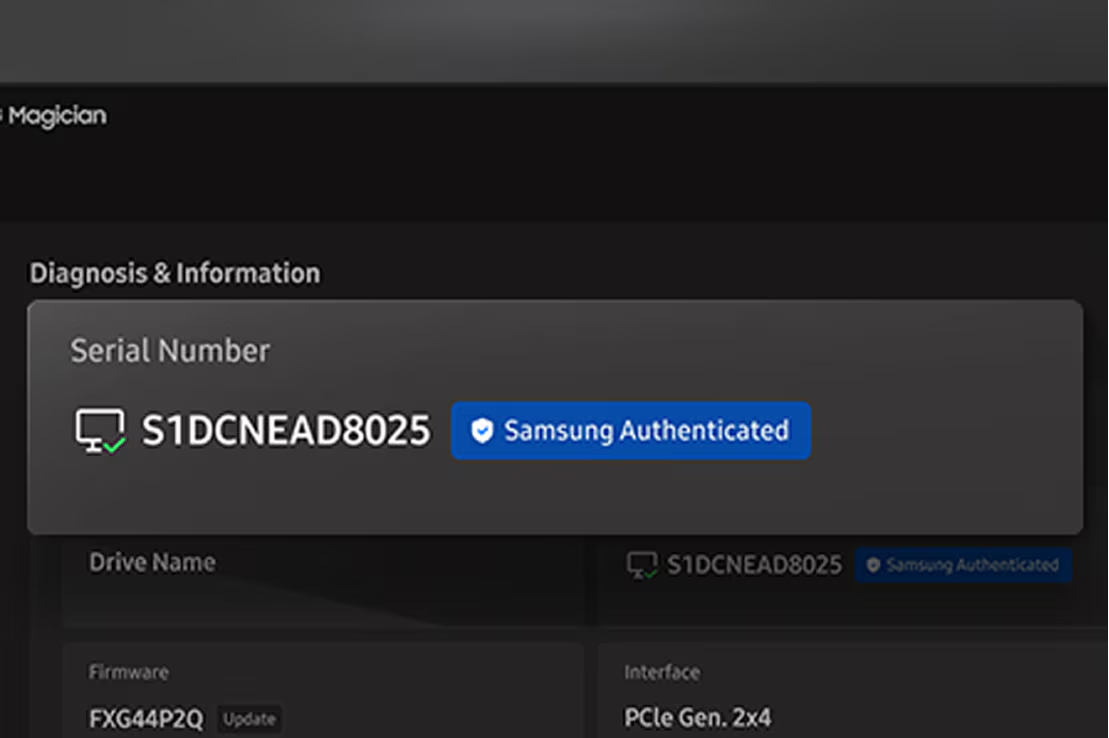
Genuine Authentication
Verify the authenticity of your Samsung SSD to ensure optimal performance and system stability. A quick check for peace of mind and peak reliability.
*Internet connection required for authentication.

A quieter command center for the drive you already own.
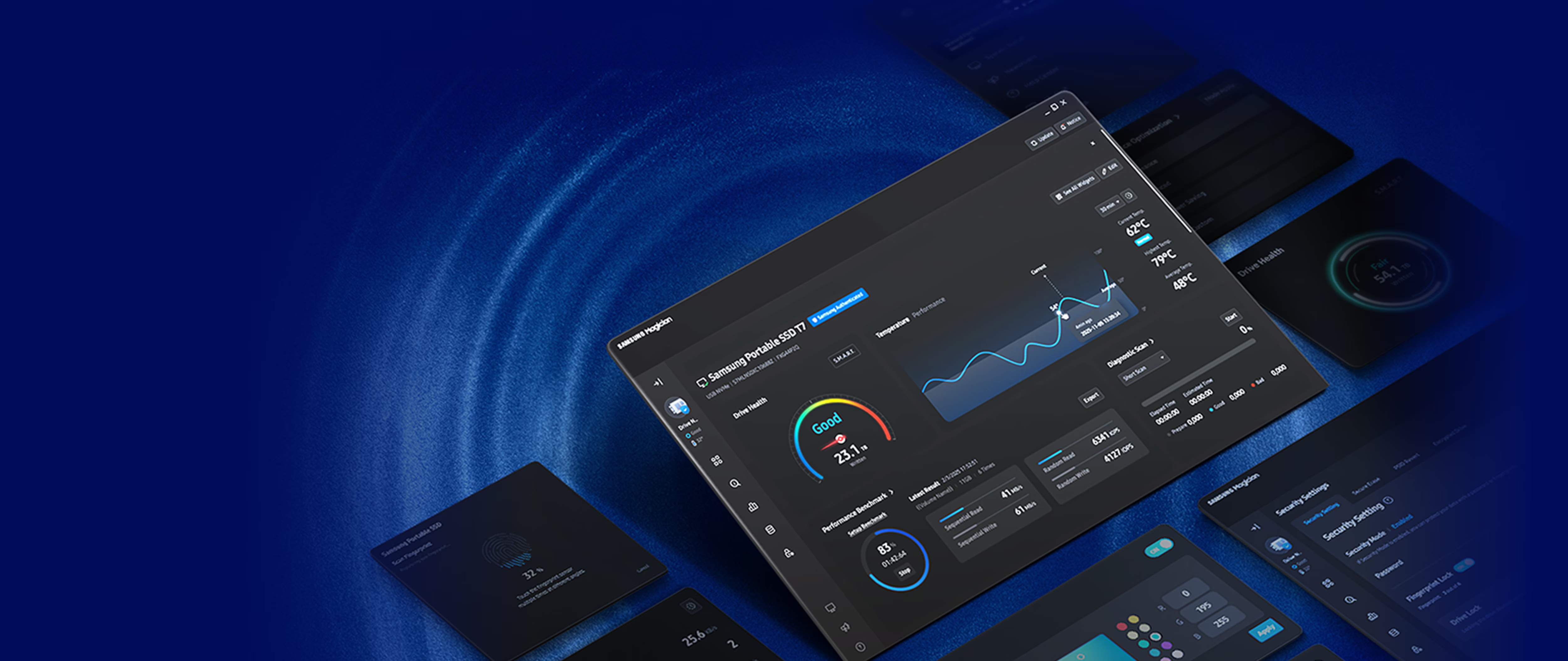
Design your drive around you. You can customize your dashboard with your favorite widgets to match your preferences and usage patterns.

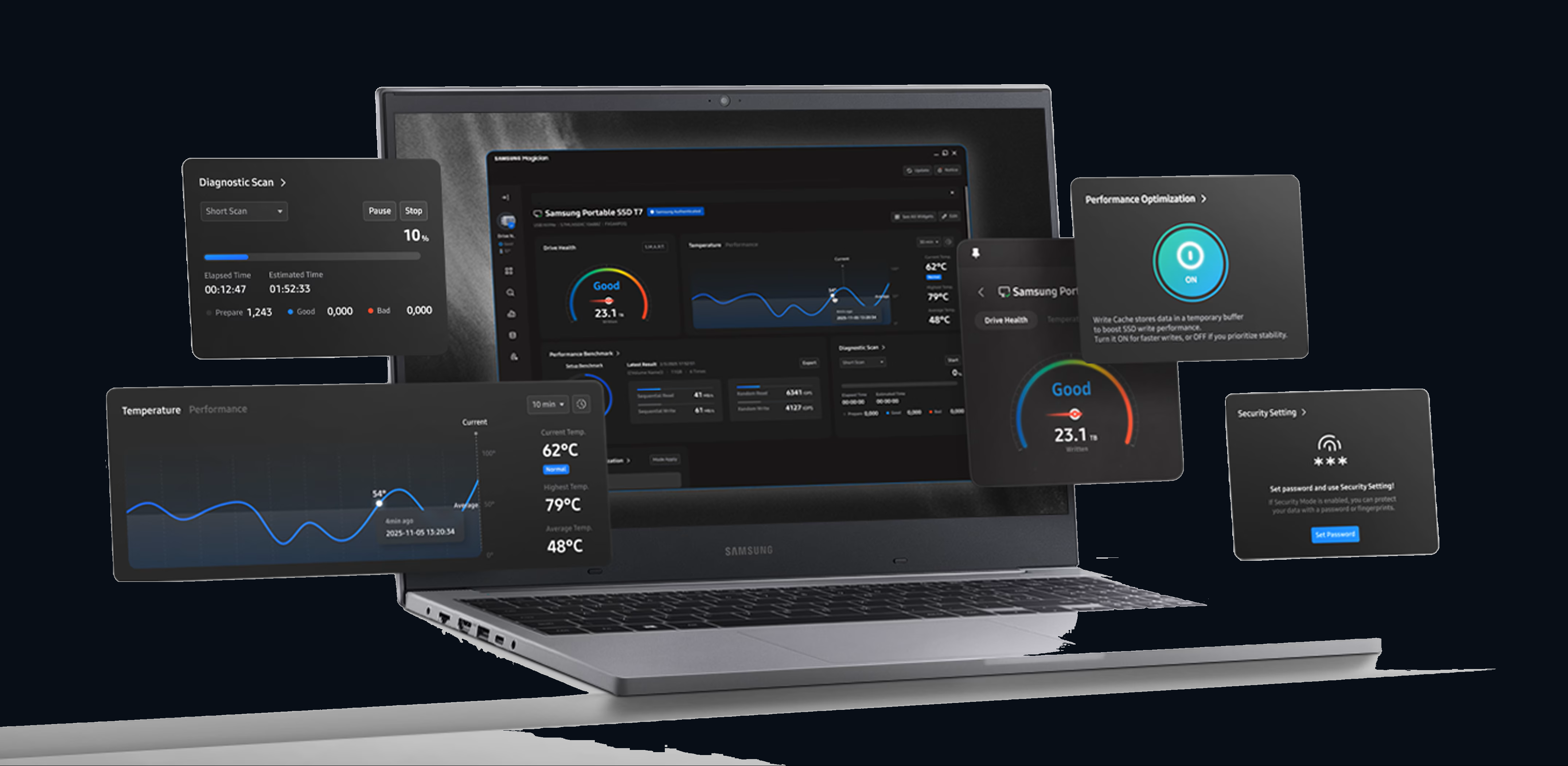
Get real-time SSD health at a glance. One simple dashboard gives you a clear view of your drive status so you can check system compatibility, get update alerts and keep performance at its peak.
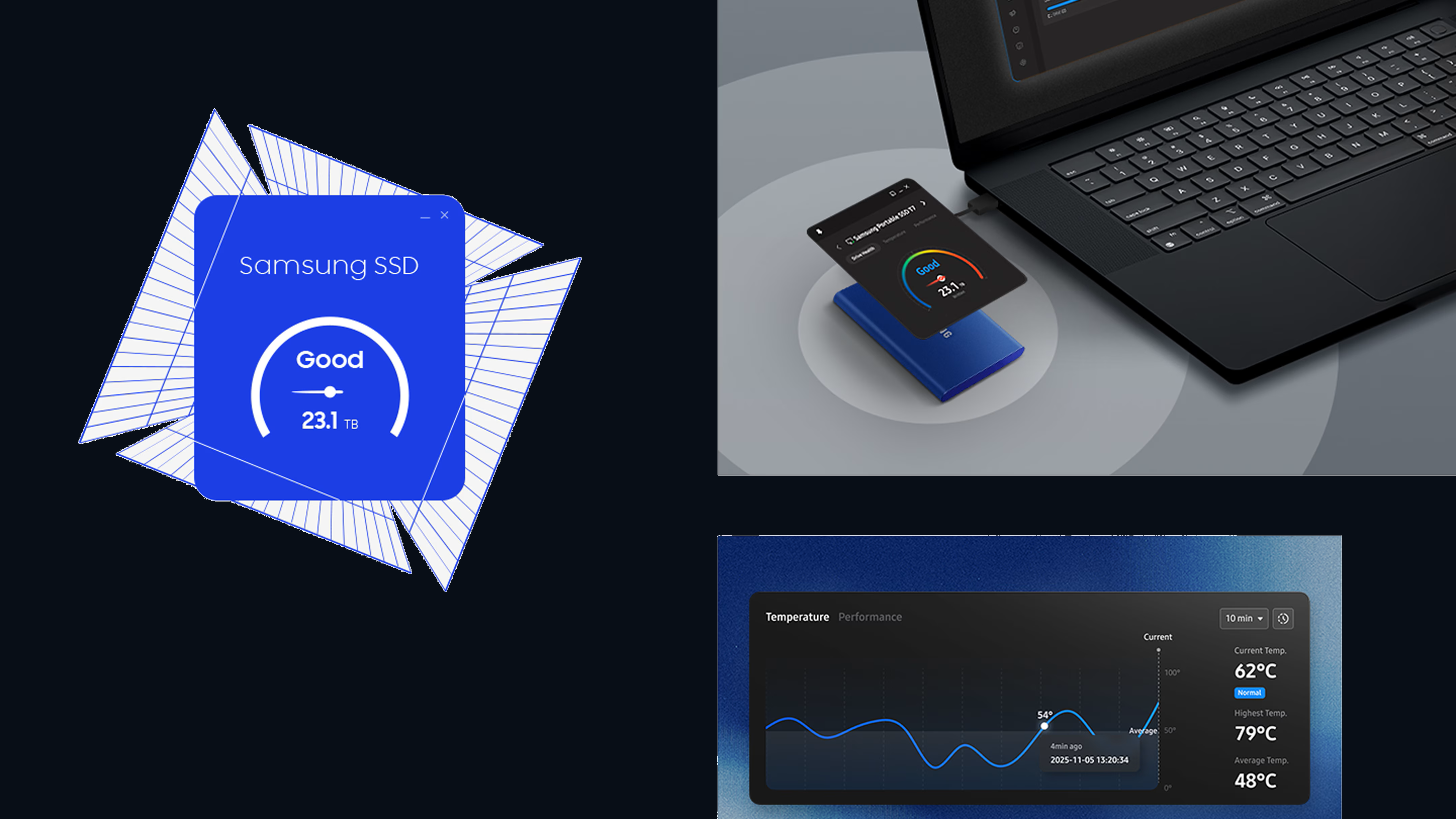
Verify the authenticity of your Samsung SSD to ensure optimal performance and system stability. A quick check for peace of mind and peak reliability.
*Internet connection required for authentication.
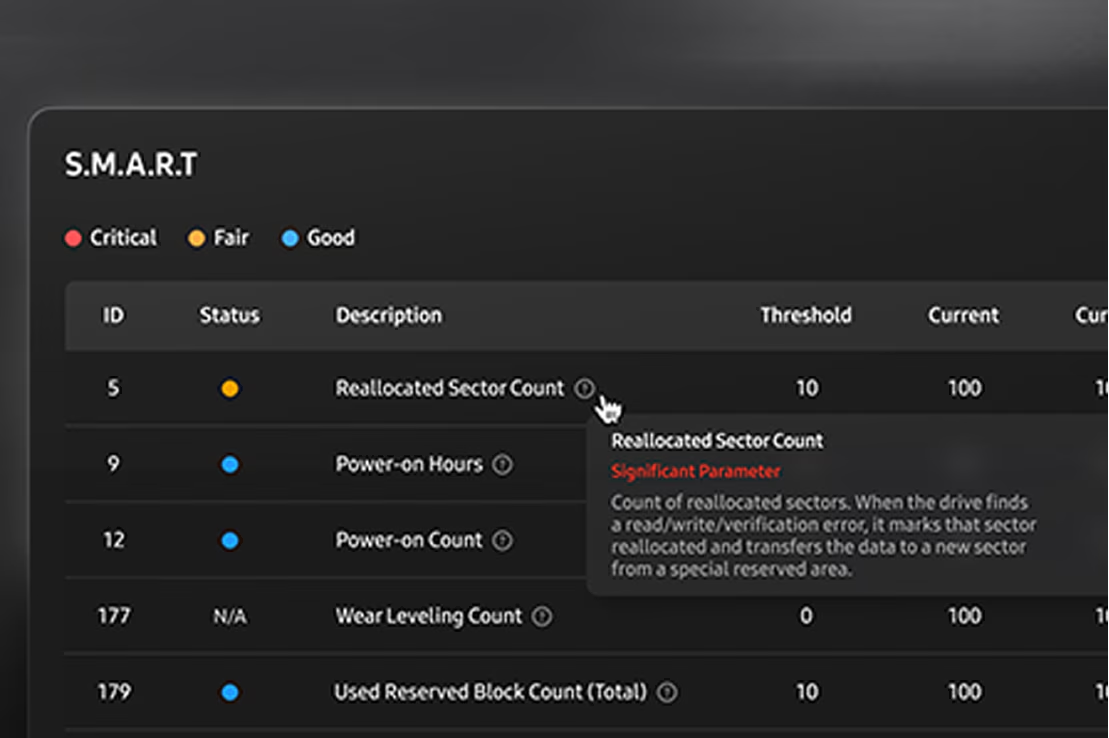
Spot signs of trouble before it starts. Built-in diagnostics provide a detailed read on drive health and detect early signs of failure, because detection and protection beat recovery.
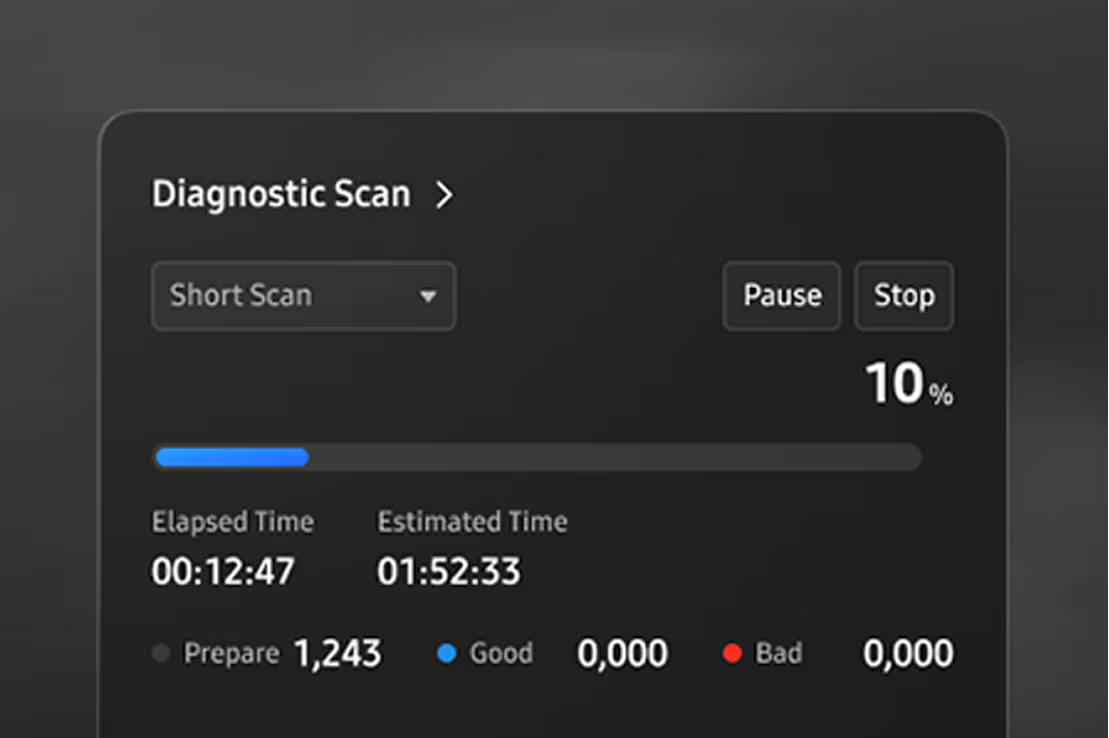
Using Diagnostic Scan, you can run a quick test to check for potential issues or functional errors in your SSD. Troubleshooting made fast, simple and effective.
Get up and running fast with Data Migration. Easily and securely transfer your OS, apps and files from your current storage device to your Samsung drive.

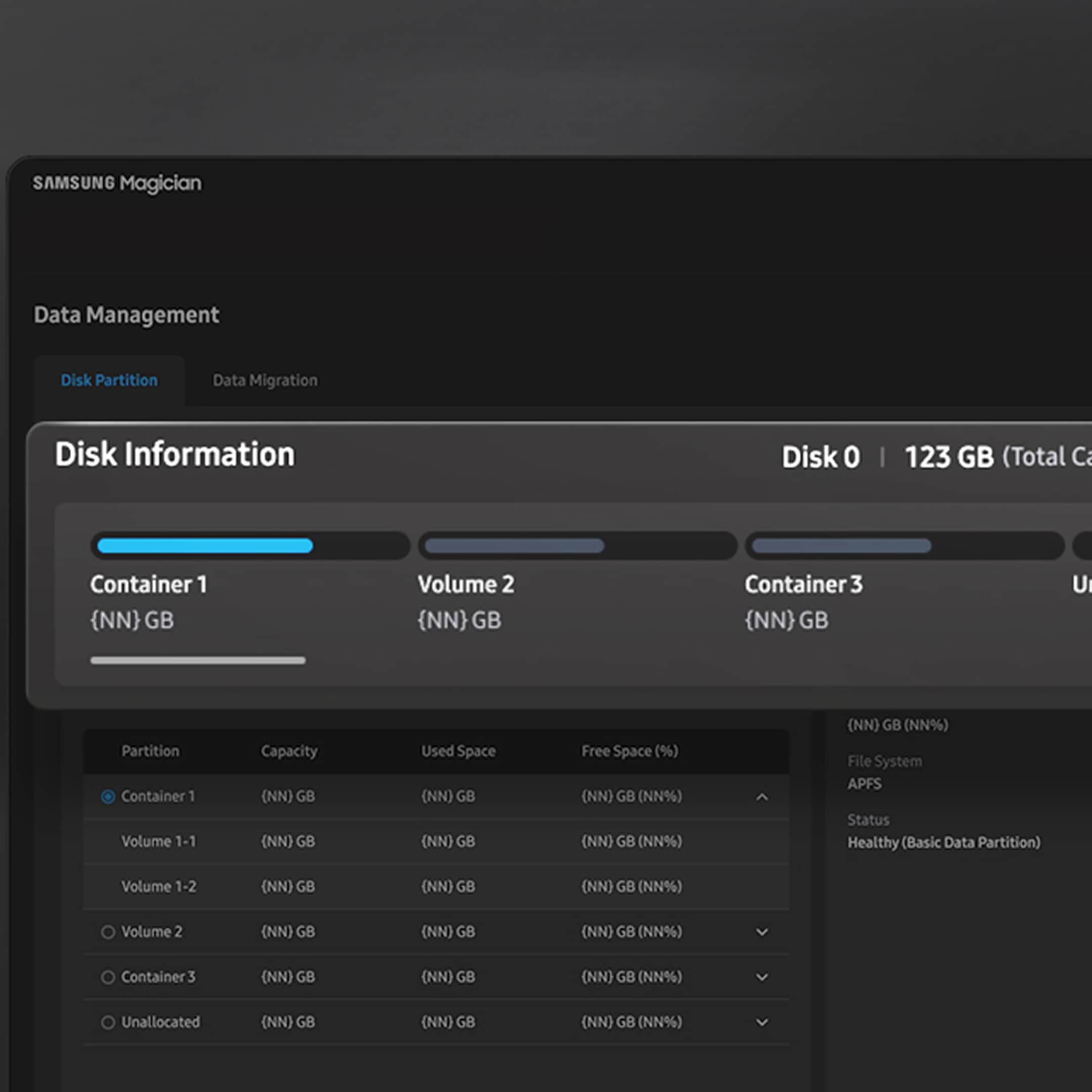
Personalize your setup to match your workflow with a single drive. Segment your SSD into isolated sections for better data separation, simpler management and stronger security.
Power through tasks your way with customizable Performance Optimization. Choose between full power or power efficiency modes, and your drive will deliver a smooth, quick experience for your selection.
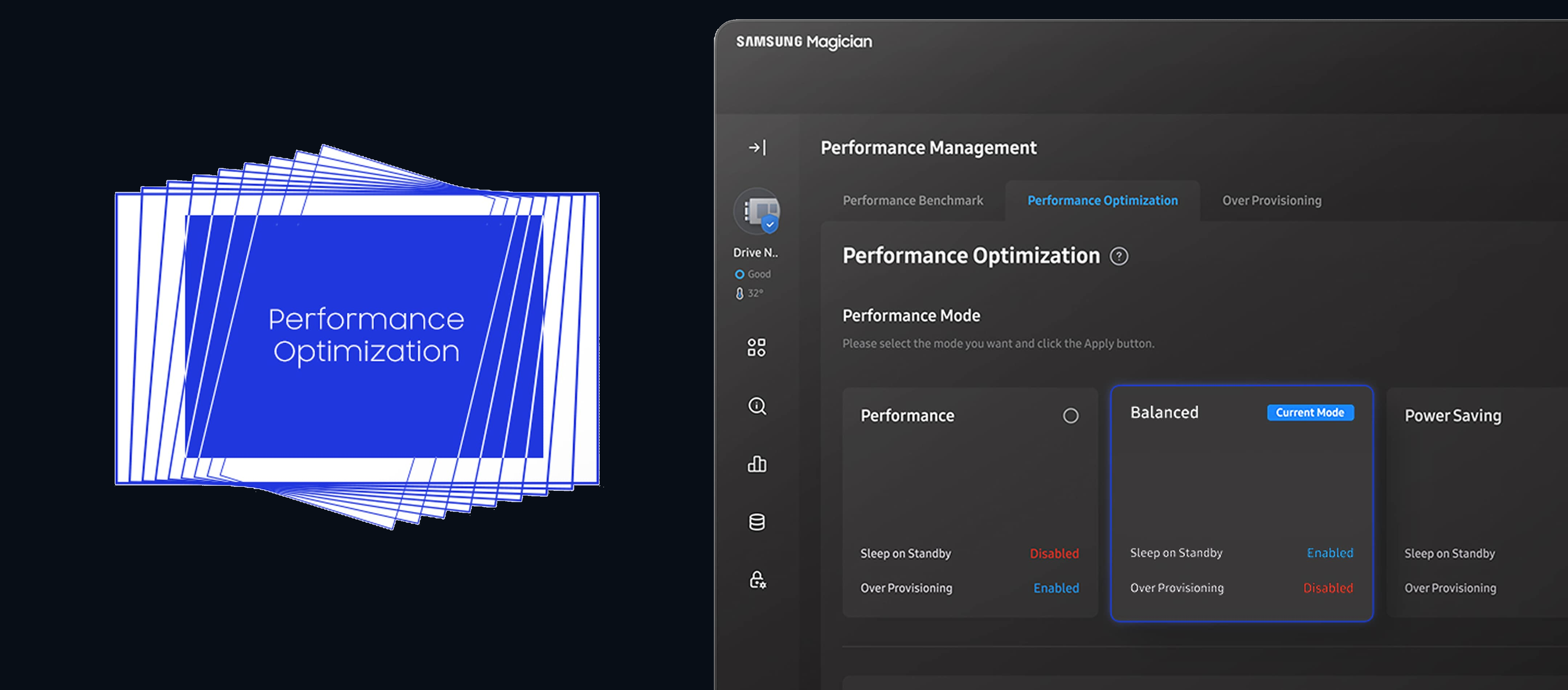
* Available mode options vary depending on the model and type of Samsung SSD. RAPID mode is fully supported only when the system meets its requirements, including Windows 7 or later and 2 GB of RAM or more.
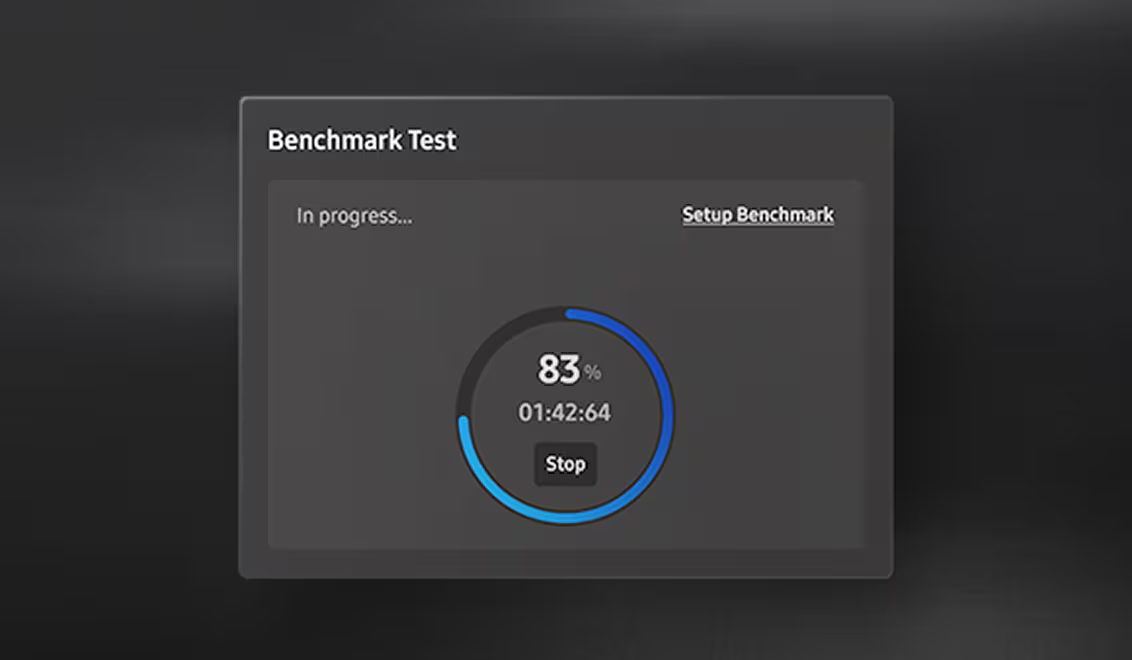
Measure what matters to you with performance tests. See how well your drive is operating with read and write speeds, and customize test conditions such as volume and chunk size.
* Refresh the drive list in System Information before a benchmark or performance optimization on a drive you just attached.
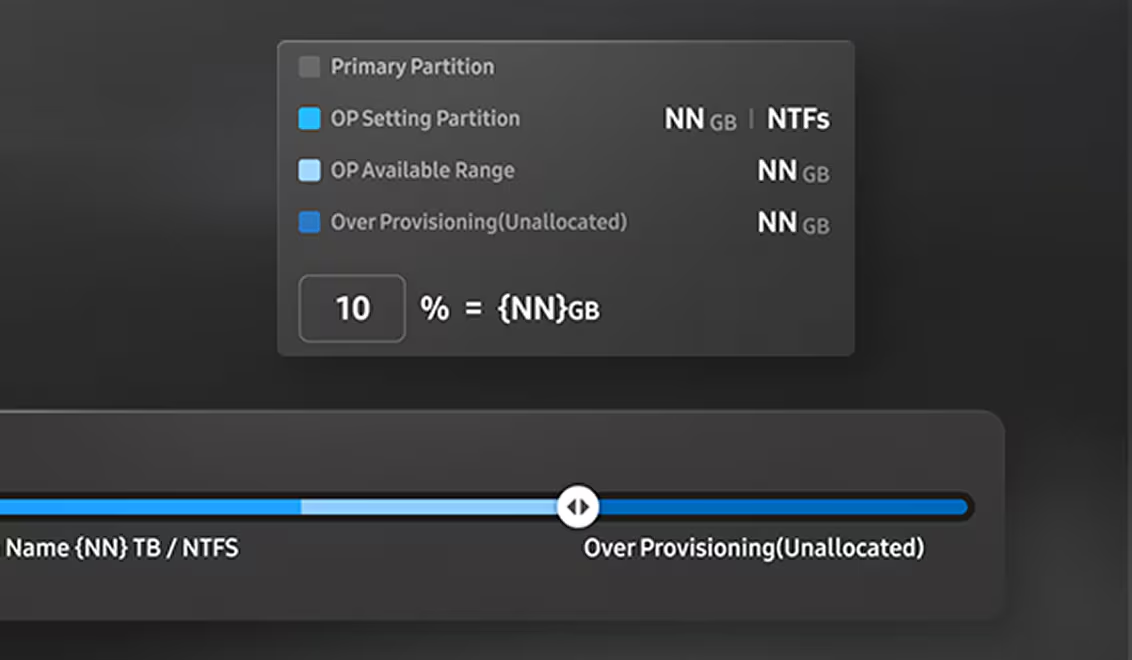
Free up a little space to reap a load of benefits. With Over Provisioning, you can allocate drive space for faster performance and routine maintenance, while extending the overall lifespan of your SSD.
* Over Provisioning is not supported for Windows XP. It can also fail when the disk has cluster misalignment, even if free space remains.
Secure your drive with password protection through the settings. Keep full control so only you can access what matters.
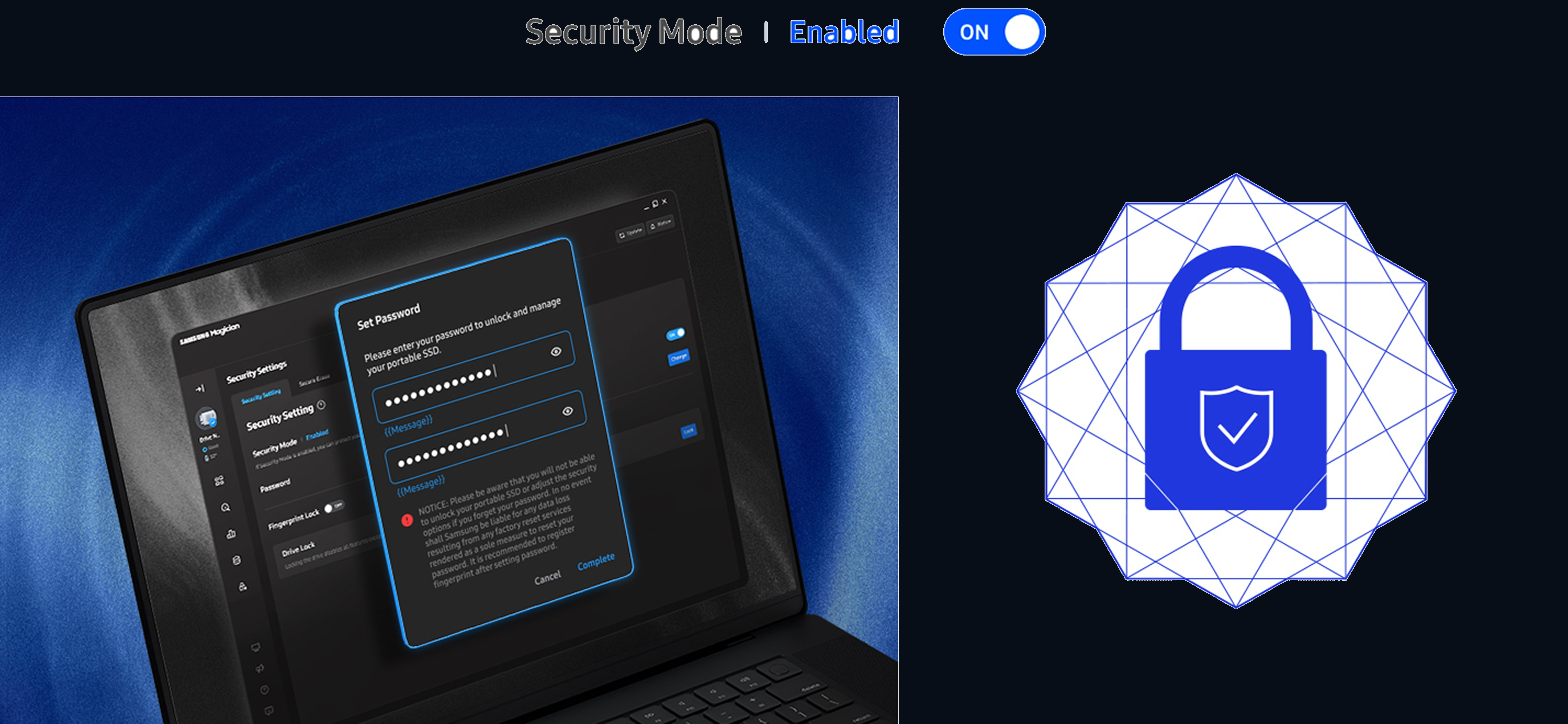
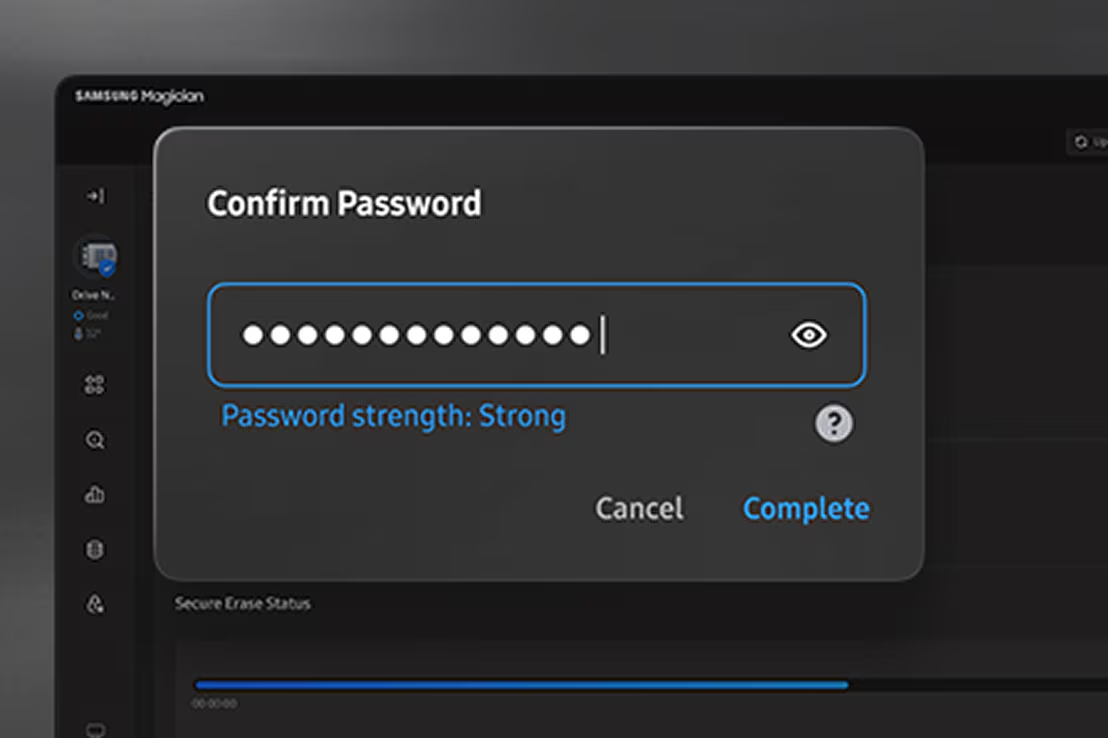
Delete sensitive information with peace of mind. Secure Erase is a built-in tool for permanently wiping the data you don't want, in a matter of seconds, without losing what you need or compromising the drive's performance.
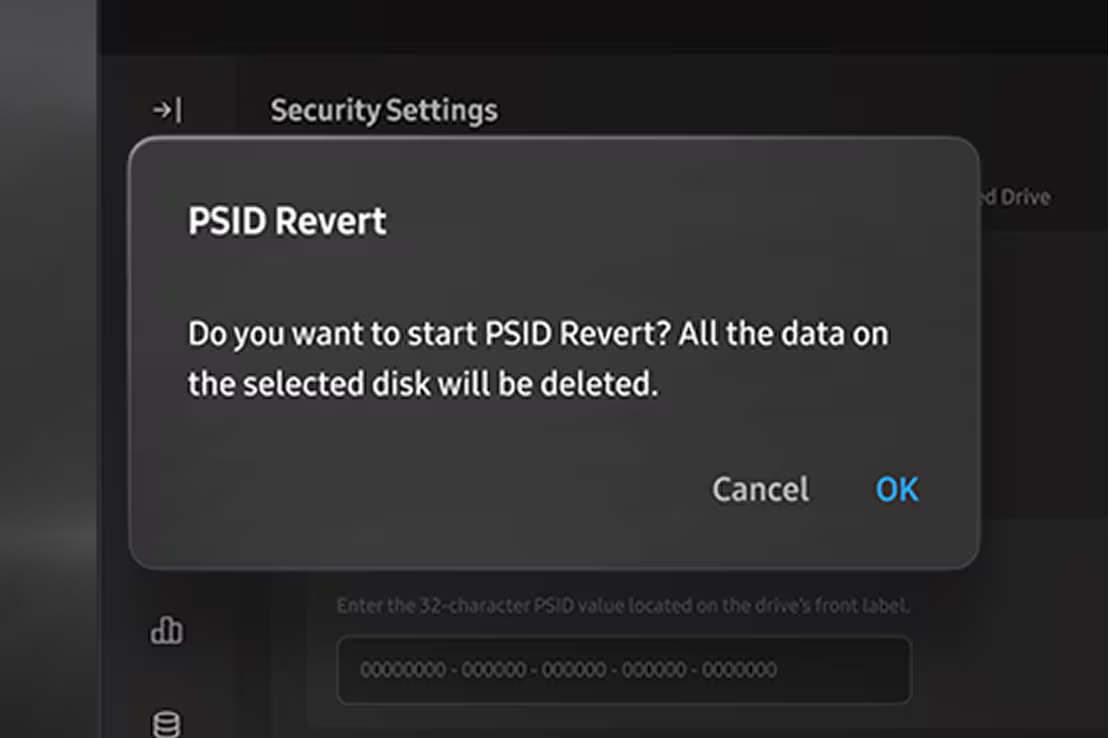
Reset your drive quickly. Enter the PSID printed on the drive label, then start PSID Revert to restore factory settings. Samsung says all data on the selected disk will be deleted.
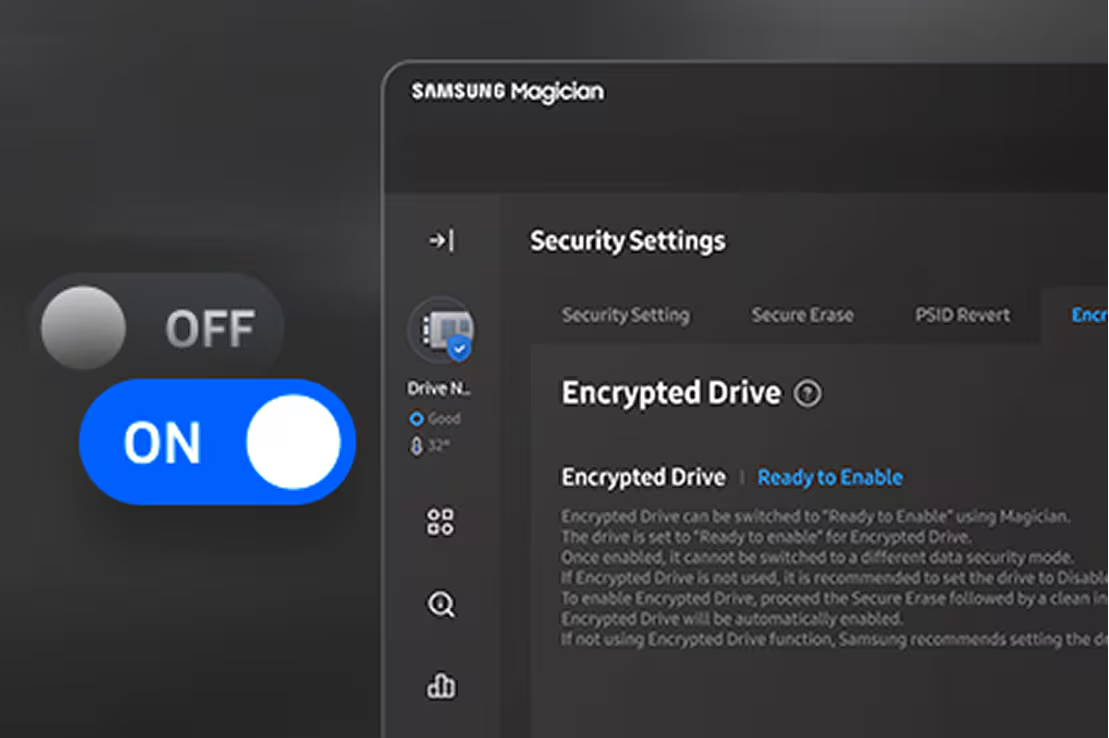
Keep your data safe by encrypting your drive. Setup is meant to be fast and simple, so you can take a secured drive with you.
* Encrypted Drive is BitLocker Drive Encryption, available on Windows 8 Pro, Windows 8 Enterprise, and later, including Windows Server 2012 editions.
Magician software supports the following Samsung memory storage products.
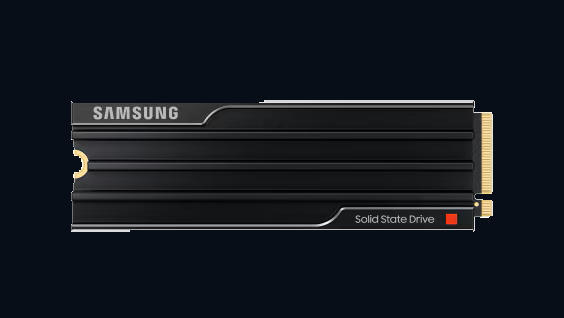
MZ-VAP1T0CW (1TB)
MZ-VAP2T0CW (2TB)
MZ-VAP4T0CW (4TB)
MZ-VAP8T0CW (8TB)
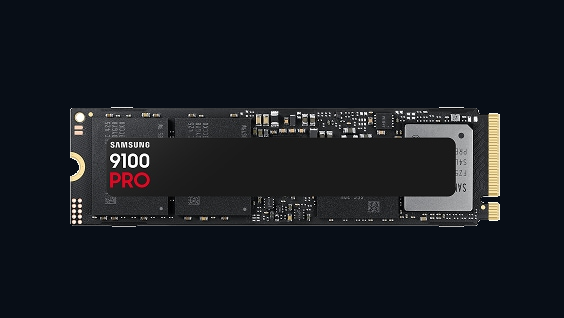
MZ-VAP1T0BW (1TB)
MZ-VAP2T0BW (2TB)
MZ-VAP4T0BW (4TB)
MZ-VAP8T0BW (8TB)
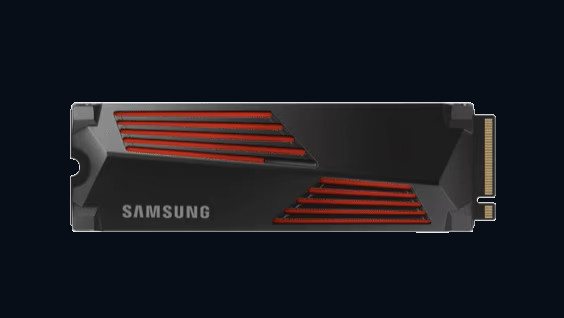
MZ-V9P1T0CW(1TB)
MZ-V9P1T0GW(1TB)
MZ-V9P2T0CW(2TB)
MZ-V9P2T0GW(2TB)
MZ-V9P4T0CW(4TB)
MZ-V9P4T0GW(4TB)
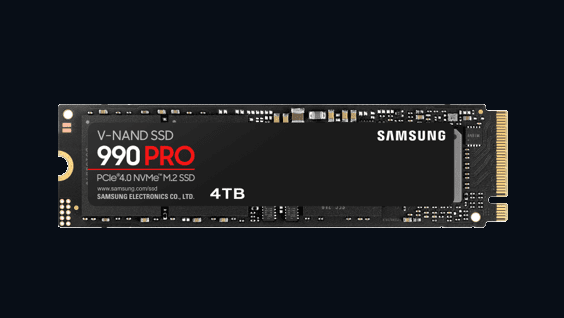
MZ-V9P1T0BW (1TB)
MZ-V9P2T0BW (2TB)
MZ-V9P4T0BW (4TB)
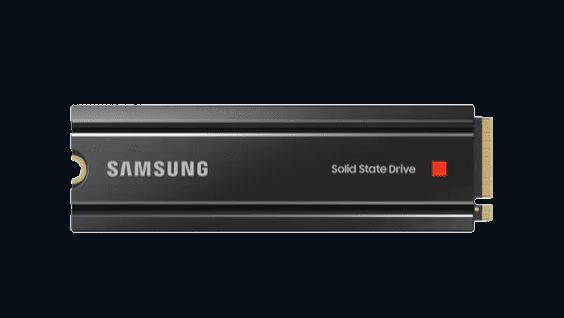
MZ-V8P1T0CW (1TB)
MZ-V8P2T0CW (2TB)
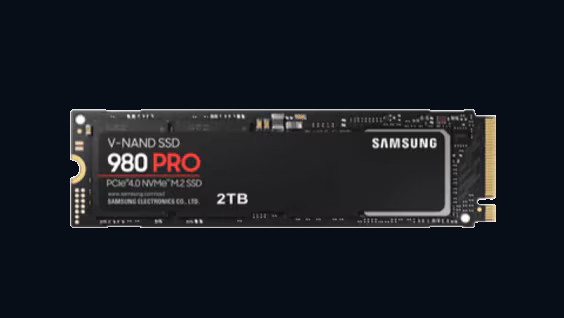
MZ-V8P250BW (250GB)
MZ-V8P500BW (500GB)
MZ-V8P1T0BW (1TB)
MZ-V8P2T0BW (2TB)
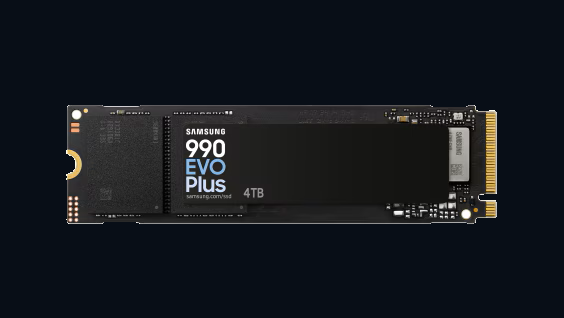
MZ-V9S1T0BW(1TB)
MZ-V9S2T0BW(2TB)
MZ-V9S4T0BW(4TB)
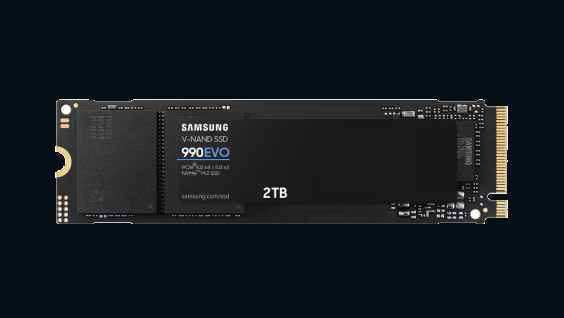
MZ-V9E1T0BW (1TB)
MZ-V9E2T0BW (2TB)
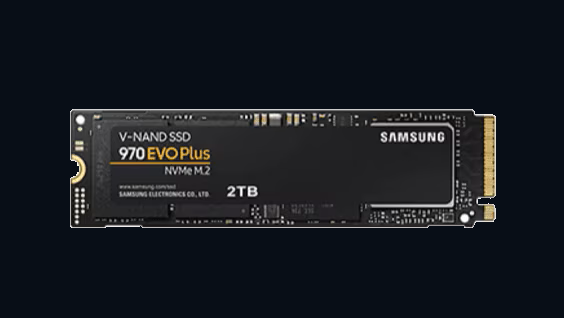
MZ-V7S250BW (250GB)
MZ-V7S500BW (500GB)
MZ-V7S1T0BW (1TB)
MZ-V7S2T0BW (2TB)
MZ-V8V250BW (250GB)
MZ-V8V500BW (500GB)
MZ-V8V1T0BW (1TB)
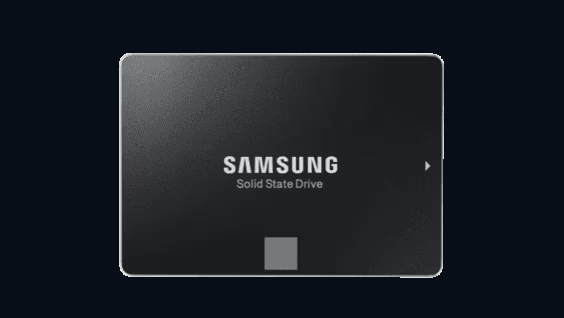
MZ-77E250 (250GB)
MZ-77E500 (500GB)
MZ-77E1T0 (1TB)
MZ-77E2T0 (2TB)
MZ-77E4T0 (4TB)
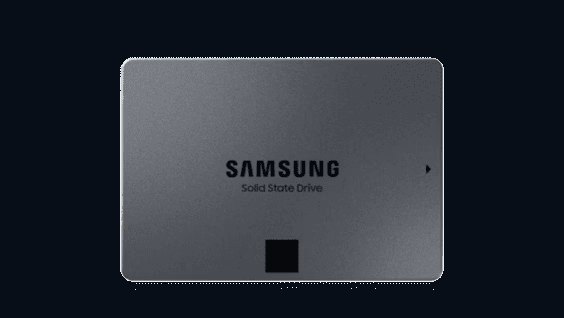
MZ 77Q1T0 (1TB)
MZ 77Q2T0 (2TB)
MZ 77Q4T0 (4TB)
MZ 77Q8T0 (8TB)
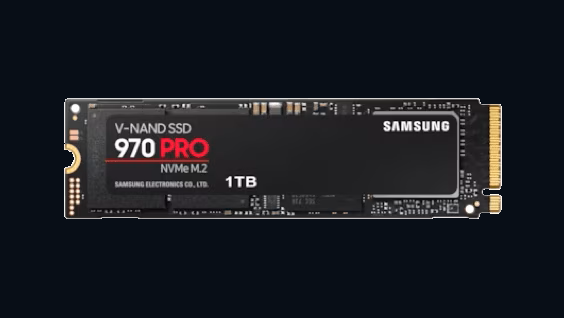
MZ-V7P512BW (512GB)
MZ-V7P1T0BW (1TB)
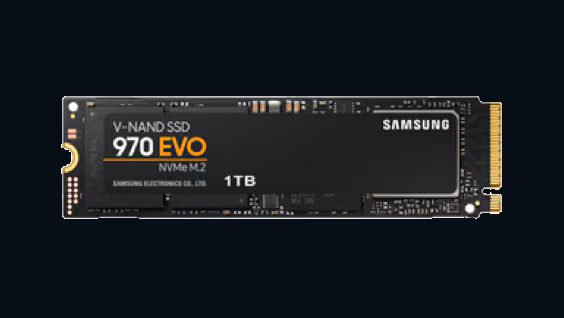
MZ-V7E250BW (250GB)
MZ-V7E500BW (500GB)
MZ-V7E1T0BW (1TB)
MZ-V7E2T0BW (2TB)
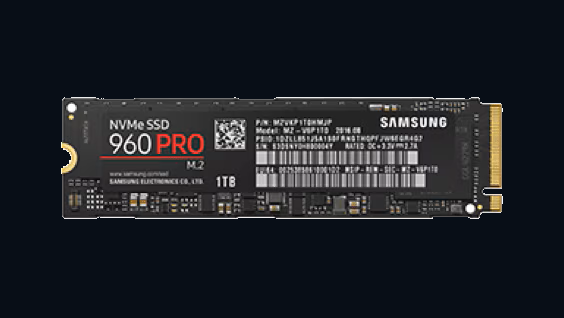
MZ-V6P512BW (512GB)
MZ-V6P1T0BW (1TB)
MZ-V6P2T0BW (2TB)
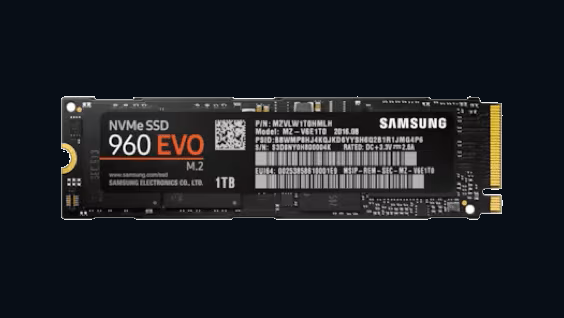
MZ-V6E250BW (250GB)
MZ-V6E500BW (500GB)
MZ-V6E1T0BW (1TB)
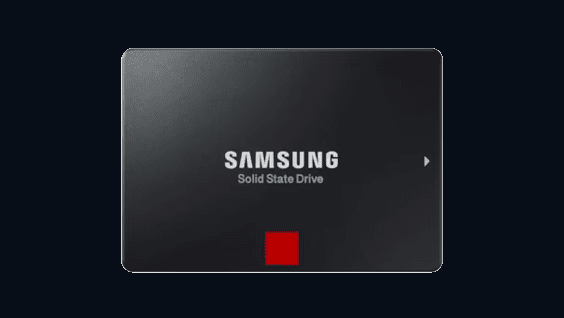
MZ-76P256BW (256GB)
MZ-76P512BW (512GB)
MZ-76P1T0BW (1TB)
MZ-76P2T0BW (2TB)
MZ-76P4T0BW (4TB)
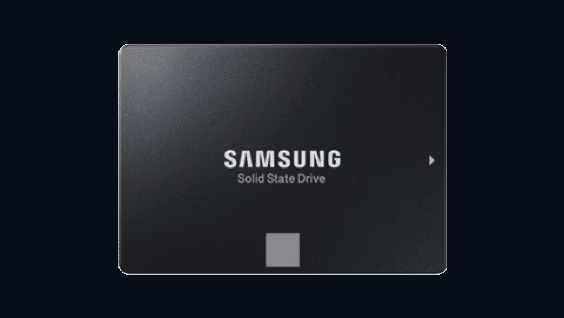
MZ-76E250BW (250GB)
MZ-76E500BW (500GB)
MZ-76E1T0BW (1TB)
MZ-76E2T0BW (2TB)
MZ-76E4T0BW (4TB)
MZ-M6E250BW (250GB)
MZ-M6E500BW (500GB)
MZ-M6E1T0BW (1TB)
MZ-N6E250BW (250GB)
MZ-N6E500BW (500GB)
MZ-N6E1T0BW (1TB)
MZ-N6E2T0BW (2TB)
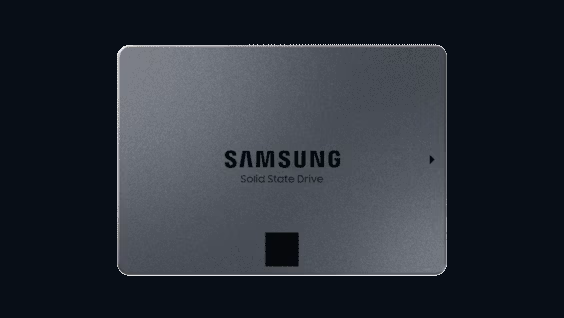
MZ-76Q1T0BW (1TB)
MZ-76Q2T0BW (2TB)
MZ-76Q4T0BW (4TB)
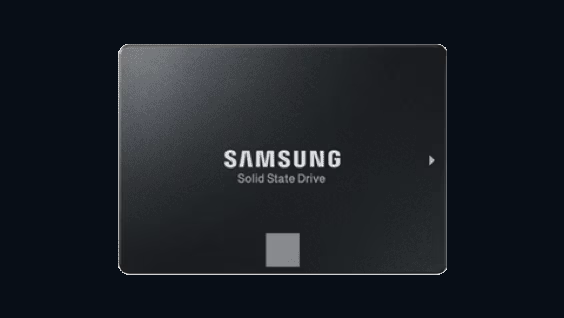
MZ-75E250 (250GB)
MZ-75E500 (500GB)
MZ-75E1T0 (1TB)
MZ-75E2T0 (2TB)
MZ-75E4T0 (4TB)
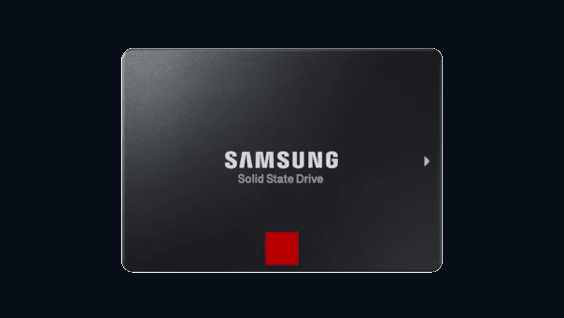
MZ-7KE256 (256GB)
MZ-7KE512 (512GB)
MZ-7KE1T0 (1TB)
MZ-7KE2T0 (2TB)
MZ-7KE4T0 (4TB)
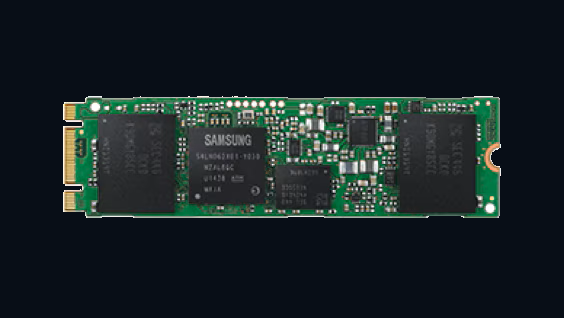
MZ-N5E120 (120GB)
MZ-N5E250 (250GB)
MZ-N5E500 (500GB)
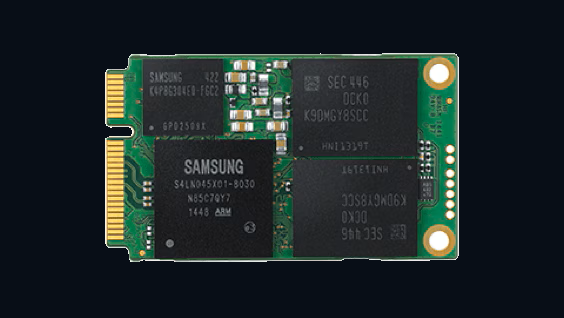
MZ-M5E120 (120GB)
MZ-M5E250 (250GB)
MZ-M5E500 (500GB)
MZ-M5E1T0 (1TB)
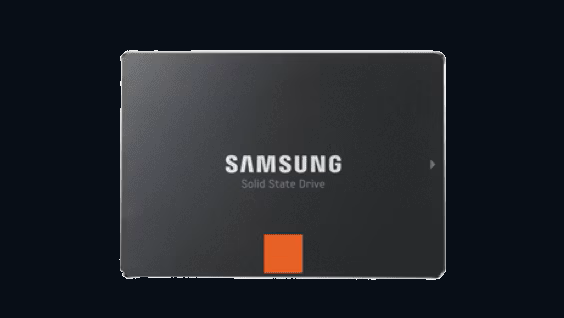
MZ-7PD128 (128GB)
MZ-7PD256 (256GB)
MZ-7PD512 (512GB)
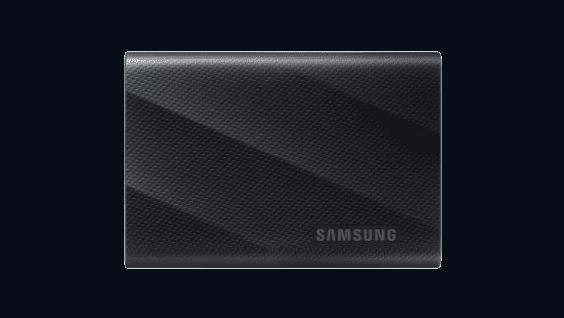
MU-PG1T0B (1TB)
MU-PG2T0B (2TB)
MU-PG4T0B (4TB)
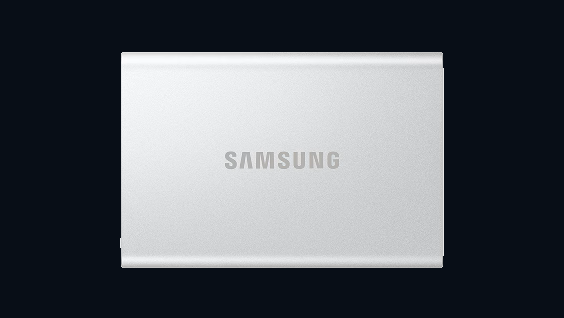
MU-PG1T0 (1TB)
MU-PG2T0 (2TB)
MU-PG4T0 (4TB)
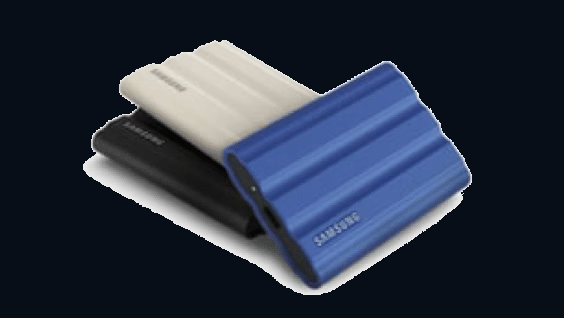
MU-PE1T0K (1TB)
MU-PE1T0R (1TB)
MU-PE1T0S (1TB)
MU-PE2T0K (2TB)
MU-PE2T0R (2TB)
MU-PE2T0S (2TB)
MU-PE4T0K (4TB)
MU-PE4T0R (4TB)
MU-PE4T0S (4TB)
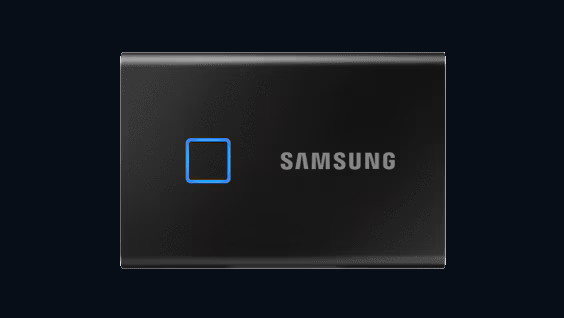
MU-PC500K (500GB)
MU-PC500S (500GB)
MU-PC1T0K (1TB)
MU-PC1T0S (1TB)
MU-PC2T0K (2TB)
MU-PC2T0S (2TB)
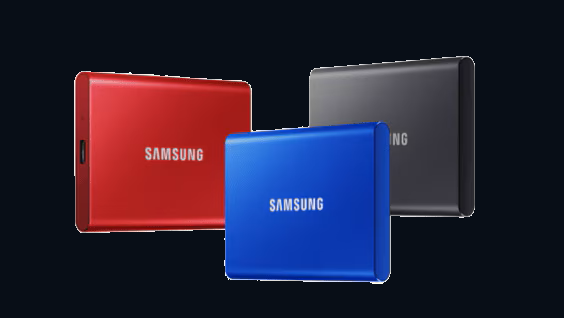
MU-PC500R (500GB)
MU-PC500H (500GB)
MU-PC500T (500GB)
MU-PC1T0R (1TB)
MU-PC1T0H (1TB)
MU-PC1T0T (1TB)
MU-PC2T0R (2TB)
MU-PC2T0H (2TB)
MU-PC2T0T (2TB)
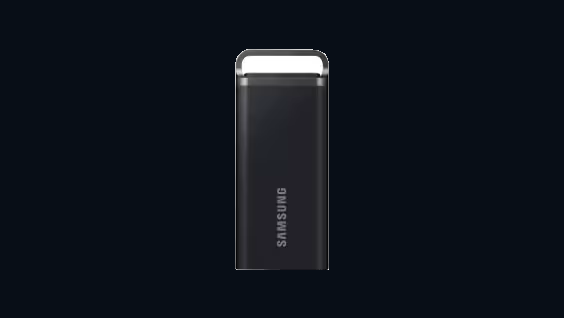
MU-PH2T0S (2TB)
MU-PH4T0S (4TB)
MU-PH8T0S (8TB)
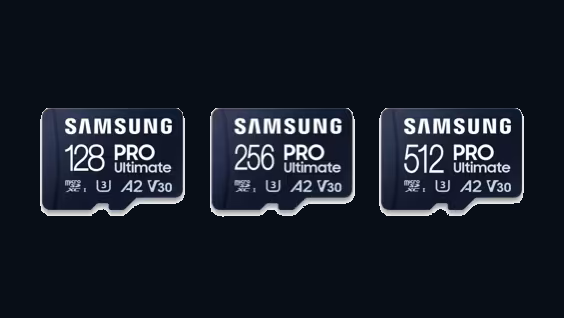
MB-MY128S (128GB)
MB-MY256S (256GB)
MB-MY512S (512GB)
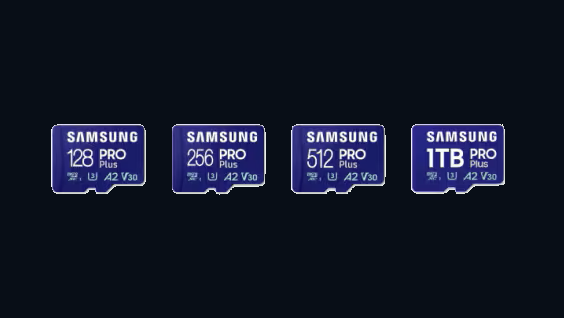
MB-MD128S (128GB)
MB-MD256S (256GB)
MB-MD512S (512GB)
MB-MD1T0S (1TB)
MB-MD128K (128GB)
MB-MD256K (256GB)
MB-MD512K (512GB)
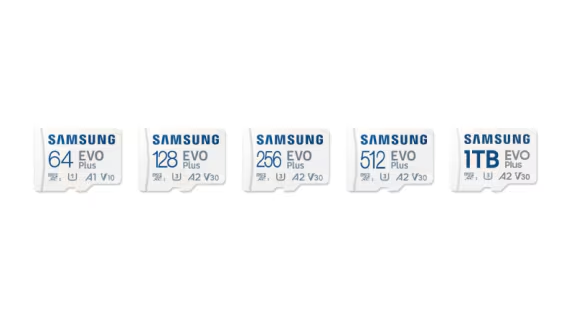
MB-MC64S (64GB)
MB-MC128S (128GB)
MB-MC256S (256GB)
MB-MC512S (512GB)
MB-MC1T0S (1TB)
MB-MC64K (64GB)
MB-MC128K (128GB)
MB-MC256K (256GB)
MB-MC512K (512GB)
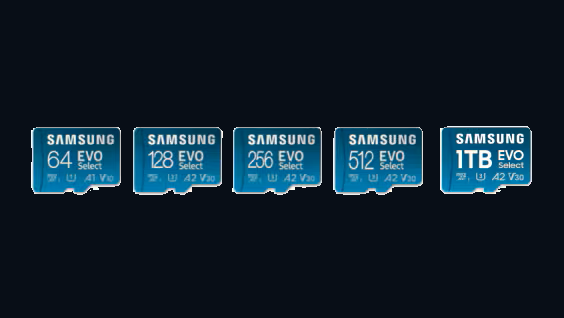
MB-ME64S (64GB)
MB-ME128S (128GB)
MB-ME256S (256GB)
MB-ME512S (512GB)
MB-ME1T0S (1TB)
MB-ME64K (64GB)
MB-ME128K (128GB)
MB-ME256K (256GB)
MB-ME512K (512GB)
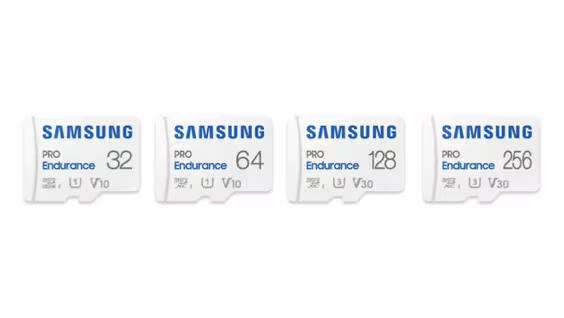
MB-MJ32K (32GB)
MB-MJ64K (64GB)
MB-MJ128K (128GB)
MB-MJ256K (256GB)
MB-MJ32G (32GB)
MB-MJ64G (64GB)
MB-MJ128G (128GB)
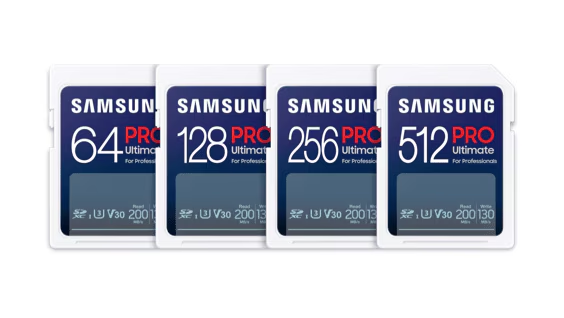
MB-SY64S (64GB)
MB-SY128S (128GB)
MB-SY256S (256GB)
MB-SY512S (512GB)
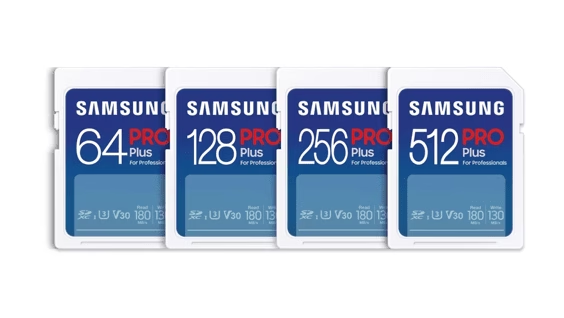
MB-SD64S (64GB)
MB-SD128S (128GB)
MB-SD256S (256GB)
MB-SD512S (512GB)
MB-SD32K (32GB)
MB-SD64K (64GB)
MB-SD128K (128GB)
MB-SD256K (256GB)
MB-SD512K (512GB)
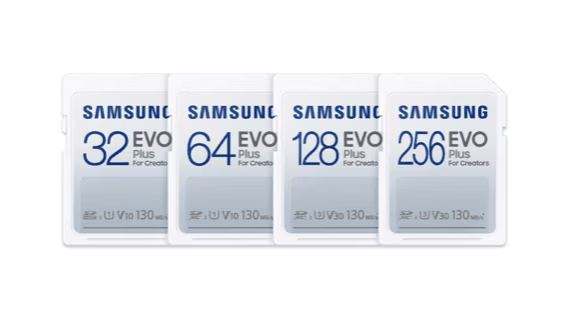
MB-SC32K (32GB)
MB-SC64K (64GB)
MB-SC128K (128GB)
MB-SC256K (256GB)
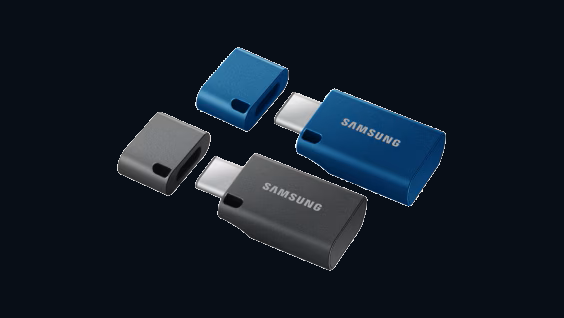
MUF-64DA (64GB)
MUF-128DA (128GB)
MUF-256DA (256GB)
MUF-512DA (512GB)
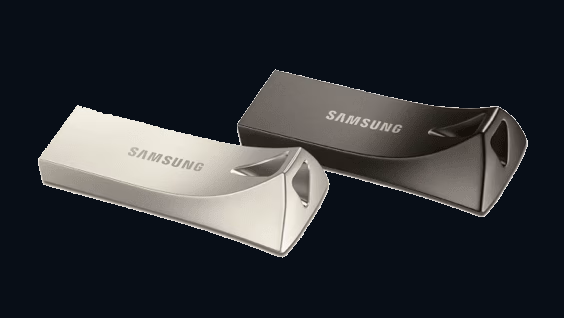
MUF-32BE (32GB)
MUF-64BE (64GB)
MUF-128BE (128GB)
MUF-256BE (256GB)
MUF-512BE (512GB)
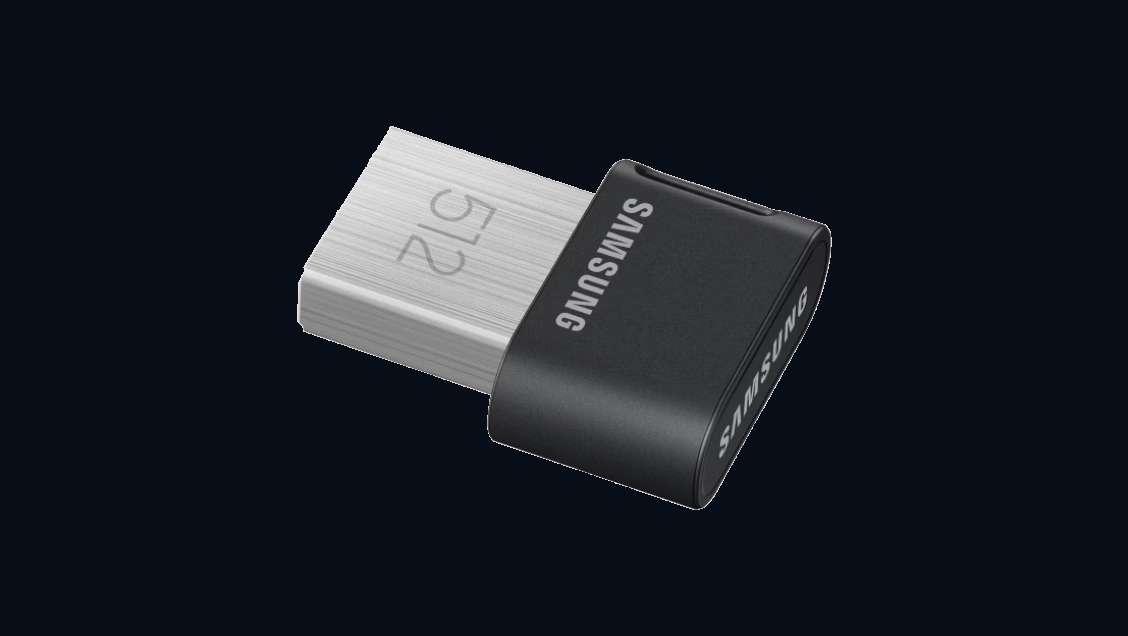
MUF-32AB (32GB)
MUF-64AB (64GB)
MUF-128AB (128GB)
MUF-256AB (256GB)
MUF-512AB (512GB)
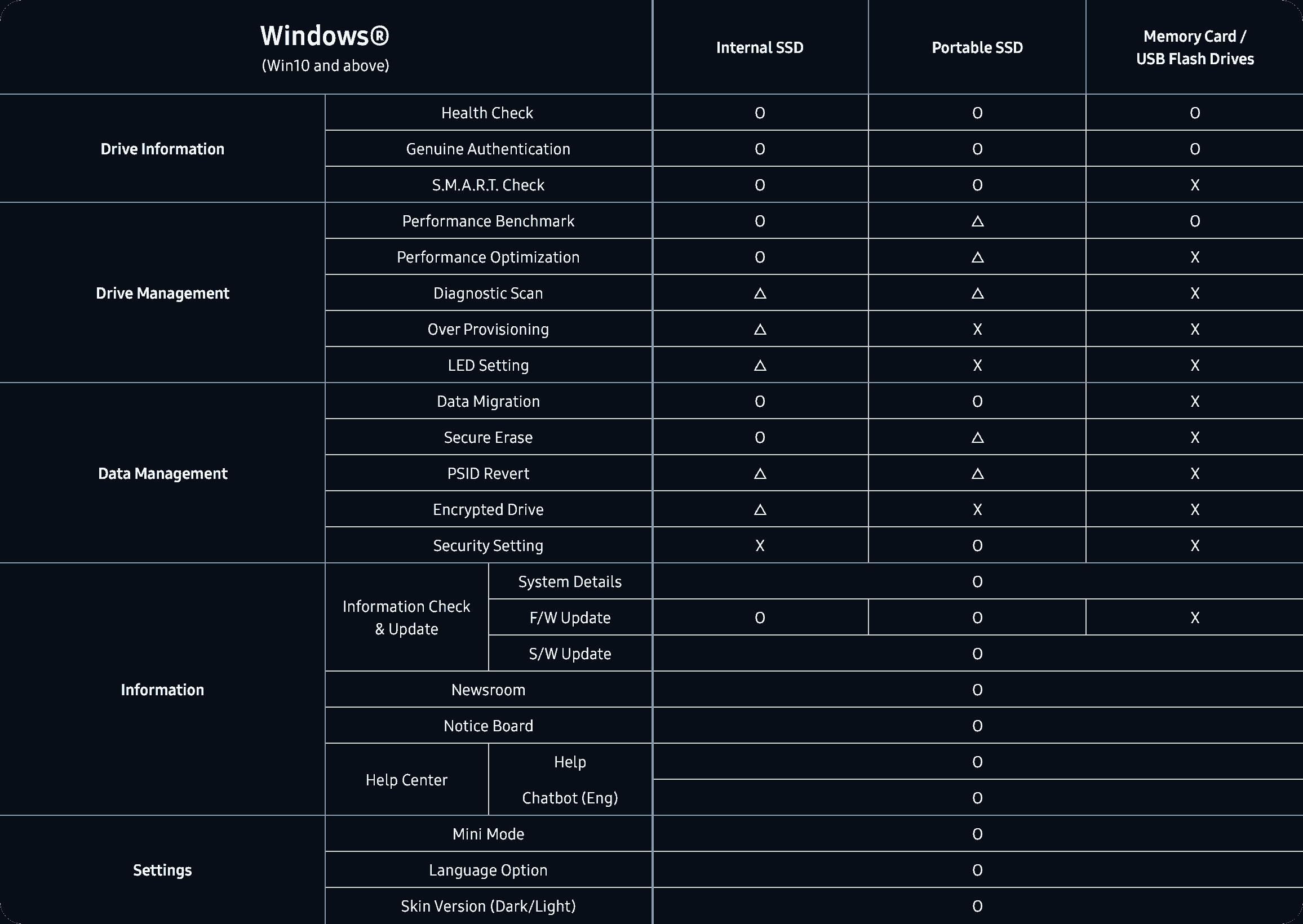
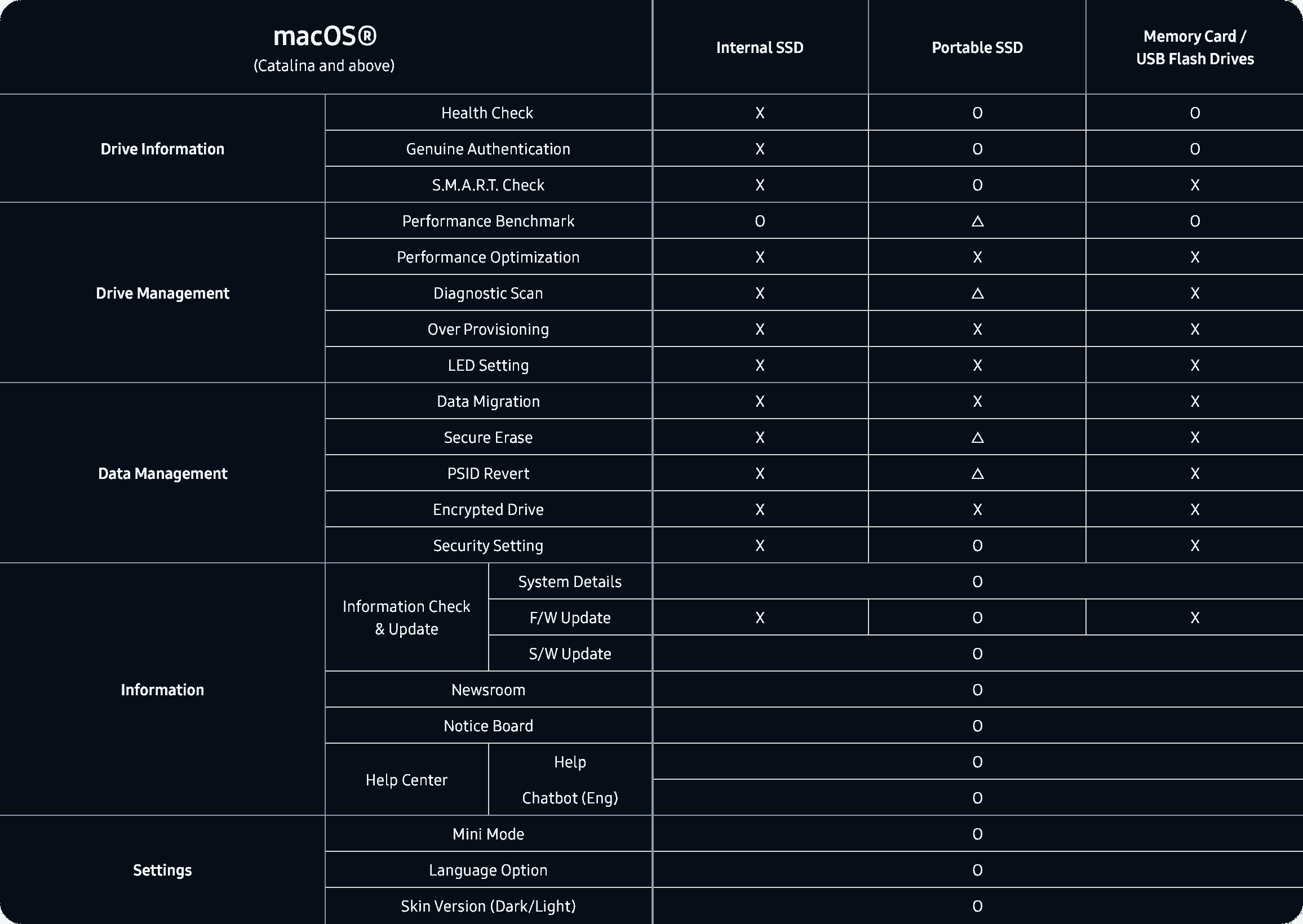
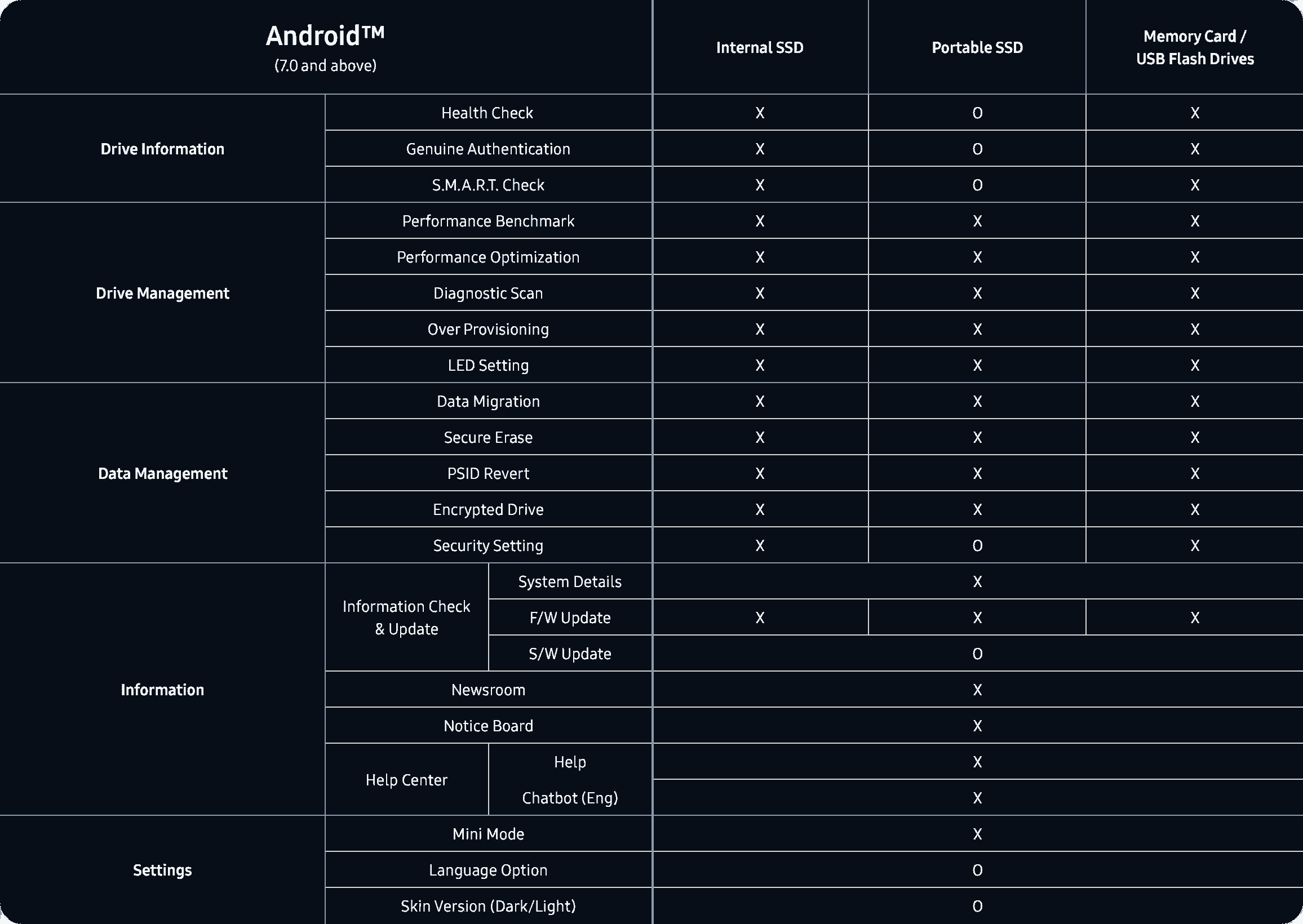
* Feature availability may differ across language versions of the software. O: all models supported. Triangle: some models supported. X: not supported.
Samsung Magician helps owners manage Samsung internal SSDs, portable SSDs, memory cards, and USB flash drives, update firmware, and tune a drive for performance and reliability. Samsung distributes it only for owners of Samsung memory products. Features such as compatibility, benchmark, optimization, over provisioning, secure erase, and data security depend on the model. Non-Samsung SSDs and Samsung OEM drives that shipped inside a PC do not get the full set.
Samsung Magician 9.0 runs on Windows 10 (32-bit and 64-bit), macOS Catalina 10.15 and later, and Android 7.0 and later. Windows 8.1 and older should use Magician 7.3. Linux is not supported. Internal SSDs are not supported on macOS or Android.
Full support is for Samsung branded internal SSDs, portable SSDs, memory cards, and USB flash drives. Supported features may differ on Samsung OEM SSDs and on drives from other brands.
Version 9.0 for Windows
Samsung Magician is free drive software for a Samsung internal SSD, portable SSD, memory card, or USB flash drive. On Windows it reports health, runs a diagnostic scan, updates firmware, and can copy an existing system onto a new Samsung SSD.
Free proprietary license. Install needs 600 MB. This site does not host the EXE. The button opens Samsung Semiconductor's tools page.
N/A when the drive does not expose the S.M.A.R.T. attribute.
Shown when the connected Samsung drive reports it.
Total bytes written on supported Samsung products.
Samsung shows "Updated version is available" beside the firmware name when a newer one exists.
These are field names from Samsung Magician. The panel is not a reading from a disk in front of us, and it does not invent a percentage, a temperature, or a terabyte count.
Samsung Magician 9.0 is the company's own utility for Samsung memory products. The installation guide, revision 1.9 from December 2025, describes a new interface and customizable widgets. Samsung's product page says the same generation can authenticate a drive, read S.M.A.R.T. data, run a diagnostic scan, migrate a system, partition a disk, tune performance, and apply security tools. Which of those appear depends on the model.
Read the feature breakdown, including RAPID mode and PSID revert
Drive details
Samsung groups these under drive information. They are the reason most people open the program after a new 990 PRO, 980, or portable T7 shows up in Windows.
Confirms the drive is a Samsung product. Samsung states that this check needs internet. If it fails, the FAQ says to check the connection, restart the PC, and contact an authorized Samsung service center if it still fails.
Reads the health attributes the drive exposes, including signs Samsung describes as early trouble. Drive health and total usage stay N/A when the attribute is missing or the disk is not a supported Samsung product.
A short or full test for functional errors. Short scan is NTFS only and Samsung asks for at least 5 GB free. A locked drive cannot be scanned. Full scan can crawl when Microsoft Defender real-time protection is on.
Samsung's FAQ describes Data Migration as the way to move the operating system, application software, and user data from the current HDD or SSD onto a new Samsung SSD. It is not a general disk cloner for any brand of target, and Samsung does not officially support it in a software RAID layout.
Do not disconnect the drive while a migration, firmware update, benchmark, secure erase, or diagnostic scan is running. Samsung's install guide says that an abnormal stop can corrupt data.
Source
Current HDD or SSD
The disk Windows is using now, mounted with a drive letter. Magician only lists lettered volumes.
Target
New Samsung SSD
Internal models on Windows. Refresh System Information after you attach a new drive or the list can stay stale.
Copied
OS, apps, files
Samsung's own description of the payload. Partition rules still apply: MBR or GPT only.
Performance Optimization can apply a mode such as Balanced. Samsung's product page also describes full power and power efficiency choices, and says the available modes change with the SSD. The feature uses the operating system's TRIM command and supports NTFS only.
Performance Benchmark measures read and write speed. Samsung says you can change the test volume and chunk size. Refresh the drive list before you test a disk you just plugged in. Results that miss the spec sheet have a separate checklist: port, PCIe lanes, heat, power plan, and other software.
RAPID mode, Real-time Accelerated Processing of I/O Data, is a narrower option. The install guide limits it to listed SATA SSDs, Windows 10 or higher, a 1 GHz CPU, 2 GB of RAM, 50 MB free, and NTFS.
| Optimization | NTFS. TRIM comes from Windows. IRST drivers can block write-cache changes. |
|---|---|
| Benchmark | Volume and chunk size are adjustable. Some removable disks and ASMedia controllers time out. |
| Over provisioning | NTFS or raw space. Not Windows XP. Cluster misalignment can make it fail with free space left. |
| RAPID | Listed 840, 850, 860, 870, and 750 EVO or PRO SATA models. 50 MB free, 2 GB RAM. |
People comparing drive tools usually already know CrystalDiskInfo and the Optimize Drives app in Windows. This table stays with jobs Samsung documents for Magician, and with what those other two programs are actually for.
| Job | Samsung Magician | CrystalDiskInfo | Windows Optimize Drives |
|---|---|---|---|
| Samsung SSD firmware update | Yes, from Samsung. The PC shuts down after a 20 second countdown. | No. It displays S.M.A.R.T. data. | No. |
| Drive health and TBW | Yes on supported Samsung products. N/A if the attribute is missing. | Shows the S.M.A.R.T. attributes the drive exposes, on many brands. | No health or TBW view. |
| Read and write benchmark | Yes, with volume and chunk size. That is separate from CrystalDiskMark. | No. CrystalDiskMark is a different program. | No. |
| Copy Windows onto a new Samsung SSD | Yes. Data Migration copies OS, apps, and files. | No. | No. |
| Secure erase and PSID revert | Yes on models Samsung lists. PSID revert deletes the drive. | No. | No. |
| TRIM | Performance Optimization uses the OS TRIM command on NTFS. | No. | Yes. This is the Windows trim tool. |
| Other brands of SSD | Limited. Firmware, health, secure erase, and TBW are excluded. | S.M.A.R.T. read is the point of the program. | TRIM on volumes Windows supports. |
| Price | Free, proprietary, from Samsung. | Free. | Included with Windows. |
Samsung's product page. Uptodown records Windows build 9.0.1.950 on 1 April 2026.
Uptodown's size for 9.0.1.950 only. Do not treat it as the size of every later build.
Plus macOS 10.15 and Android 7.0. Linux is not supported. Internal SSDs need Windows.
This domain is an independent reference. It is not Samsung Electronics.
Uptodown's Windows listing showed a 1.0 score from 3 reviews and 171,124 downloads. That score belongs to Uptodown's page, not to this site. Both comments below are old and short. They are included because they are real, not because they praise the program.
"Win 11, it doesn't work."
"Since the update of Samsung Magician to version 7.1, the application no longer starts on each reboot of my computer running Win10. The message suggests reinstalling the application, which works."
The questions below are the ones people type before they install. The full set, including RAID, capacity math, and firmware backup, is on the FAQ page.
Yes. Samsung distributes Magician at no charge for owners of Samsung memory products. The license is proprietary. Uptodown's Windows listing also marks build 9.0.1.950 as free.
The Magician 9 installation guide requires Windows 10 or higher, which includes Windows 11. Samsung's FAQ names Windows 10 (32-bit and 64-bit) for version 9.0 and tells people on Windows 8.1 or older to use Magician 7.3. A 2023 Uptodown comment said Windows 11 did not work. That report predates the 9.0.1.950 build listed on 1 April 2026.
Full support is for Samsung branded internal SSDs, portable SSDs, memory cards, and USB flash drives. Samsung says firmware update, drive health, secure erase, and total bytes written are not supported on non-Samsung SSDs. Features can also differ on Samsung OEM drives that shipped inside a PC.
No. Samsung says Magician runs without internet. An internet connection is required to authenticate a drive as a Samsung product and is recommended for firmware, feature module, and application updates.
This site does not host the installer. Download for Windows opens Samsung Semiconductor's tools page, where Samsung publishes Magician.
Use the tools page to download Magician for Windows. Confirm the build number there. Community posts in September 2026 mention a 9.0.2 update, while Uptodown's file record is still 9.0.1.950.